Controls for Cozy Lucky Scoop Order
Keyboard, mouse, and touch flows for scooping, packing, shipping, and cozy co-op — grounded in normal Roblox defaults.
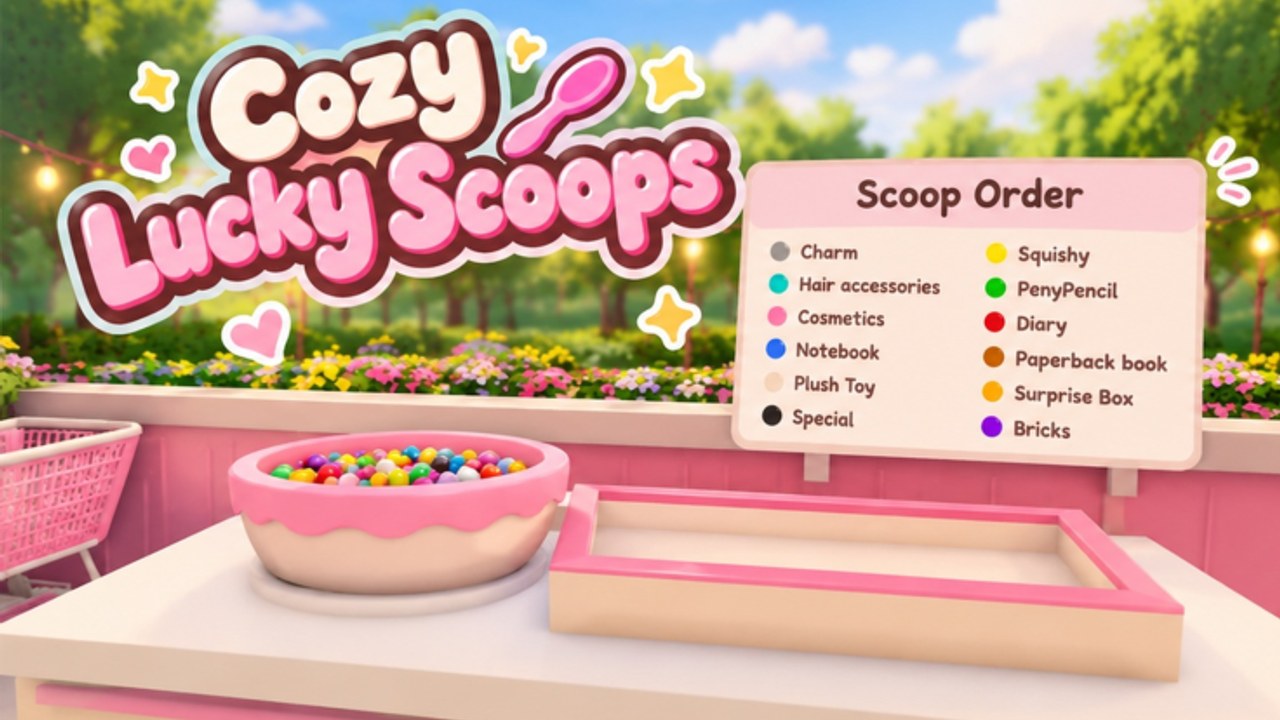
Cozy Lucky Scoop Order runs on standard Roblox movement and interaction patterns. Sakura Game Studios did not invent a fighting-game input list; almost everything in the Scoop → Pack → Ship loop is walk up, face the station, click or tap to interact. This guide explains PC keyboard/mouse and mobile/touch habits so you stop fighting the camera and start clearing tickets.
If a tutorial overlay appears on your first join, follow it once, then return here when you want a calmer reference. For the full first-session plan, pair this page with Getting Started.
Roblox defaults you should expect
Unless you remapped keys in Roblox settings, desktop play usually uses:
- W A S D — move
- Space — jump
- Shift — sprint when the experience allows it (not every cozy place enables a unique sprint)
- Right mouse drag or mouse move after click-to-lock — rotate camera (exact behavior depends on your Roblox camera mode)
- Scroll wheel — zoom in and out
- Left click — select UI buttons and world interactables when your cursor is free
- Esc — Roblox menu / release cursor depending on context
- Roblox leaderboard / player list — default Roblox hotkey (often Tab) to see who shares your twelve-player server
This wiki will not invent fake custom keybinds that contradict Roblox defaults. If the game shows an on-screen prompt (“Press E”, “Click to pack”, or a mobile button), trust the prompt over memory.
The Scoop → Pack → Ship click flow
Think in stations, not combos:
- Read the order UI first. Confirm item types and counts before you leave the counter.
- Walk to the scoop point. Face the product. Left-click or tap the highlighted interactable / proximity prompt until you hold what the ticket needs.
- Carry to packing. Keep the camera high enough to see shelves and friends so you do not path into decoration.
- Interact with the pack station. Match the ticket carefully. Confirm the pack action in UI rather than mashing.
- Move to shipping. Interact once to send the finished order. Wait for the clear feedback before starting the next ticket.
Most “I cannot scoop” problems are camera angle, standing too far away, or another player occupying the same prompt — not a missing secret key. Reposition, zoom out slightly, and try the prompt again.
Camera habits that raise ships per hour
- Keep a medium zoom so you see scoop sources and the pack table in one glance.
- After decorating, re-check sightlines; tall props hide prompts. Fix layout with help from Shop and Garden.
- On PC, avoid extreme first-person if prompts feel finicky — third-person is usually kinder for station work.
- On mobile, use the right-side camera stick/drag carefully; accidental spins waste seconds between stations.
Faster routes are covered in Order Efficiency. Controls just make those routes executable.
Menus, dailies, and feedback
Open the in-experience menu from the on-screen buttons (mobile) or by selecting the UI with the mouse (PC). From there you typically reach:
- Daily reward claim flow
- Shop / garden customize panels
- Settings toggles the studio exposes in Beta
- Feedback entry points Sakura Game Studios surfaces after patches
Use feedback for real bugs (broken pack confirm, missing daily button after an update). Do not spam it with code requests. After design patches, menus can move — rejoin once if a button vanished.
Touch and mobile specifics
Roblox mobile uses virtual joysticks plus tap targets:
- Left stick (or equivalent) moves your avatar
- Camera drag rotates view
- Tap world objects and UI buttons to interact
- Jump button remains on-screen when enabled
Fat-finger tips for Cozy Lucky Scoop Order:
- Zoom out before packing so the confirm button is easy to hit
- Pause movement before tapping dense shelf clusters
- Claim dailies in a quiet corner so chat and emotes do not cover buttons
- If a prompt fails, take one step closer and tap again instead of spamming
Mobile is fully viable for badge grinding; it just rewards calmer taps.
Inviting friends and co-op controls
You can play solo or with up to three friends inside servers that hold about twelve players. Invites use normal Roblox social flows:
- Open the Roblox player list / escape menu friends tools
- Invite from your friends list or send a experience link
- Wait until friends finish loading before assigning stations
In-session, agree verbally or in chat who scoops, who packs, and who ships. Controls stay the same; coordination is the skill. More on roles and etiquette lives on the Players Hub.
Common control mistakes
- Scooping while the camera faces a wall so you miss the prompt
- Standing on the pack table hitbox and blocking friends
- Jump-spamming through the garden during mini gift hunts and overshooting pickups
- Opening the Roblox menu mid-confirm and canceling a pack
- Assuming a custom “Q to scoop” bind exists when the game only wants a click
Reset habits: stop moving, center the station on screen, interact once, wait for feedback, then move.
Accessibility and comfort settings
Use Roblox’s own settings for shift-lock, camera sensitivity, and graphics level if frames drop in busy update weekends. Lower graphics can make prompts easier to see on older phones. None of that replaces learning the loop in Getting Started.
Practice drill (five minutes)
- Claim dailies without moving the camera wildly.
- Clear one order with deliberate clicks only — no panic mash.
- Rotate the camera 360° at the pack station and note blind corners caused by decor.
- Invite a friend or watch another player’s prompt timing if the server is populated.
- Ship one more order focusing on pathing, then read Order Efficiency for speed theory.
Related reading
- Getting Started — first-session checklist
- Order Efficiency — raise ships per hour once inputs feel natural
- Players — co-op roles on twelve-player servers
- Shop and Garden — keep interactables unblocked after decorating
Master calm interactions and Cozy Lucky Scoop Order stays cozy. The Beta rewards players who click with intention, not players who invent complicated keybind myths.
Frequently Asked Questions
Quick answers about scooping, packing, shipping, and Beta progress.
What are the keyboard controls for Cozy Lucky Scoop Order?
Use normal Roblox movement (typically WASD, Space to jump, mouse for camera and clicks). Station actions are click/tap interacts — follow on-screen prompts instead of assuming custom binds.
How do I scoop, pack, and ship on mobile?
Move with the virtual stick, drag to aim the camera, and tap prompts or UI buttons at each station. Step closer if a tap does not register.
Why will an interact prompt not appear?
You may be too far away, facing the wrong angle, blocked by decor, or overlapping another player. Reposition, zoom out, and try again.
How do I invite friends?
Use Roblox’s standard invite / friends tools. You can co-op with up to three friends on servers that hold about twelve players total.
Where is the feedback button?
Look in the in-experience menu or post-patch prompts Sakura Game Studios shows in Beta. UI placement can move after design updates.
Do I need special keybinds for badges?
No. Badges track cumulative shipped orders. Clean interacts and good routes matter more than remapped keys — see Order Efficiency.